An app without an app store
Most searches for a reels downloader app end at an APK file from an unknown site or a store listing stuffed with subscriptions. There is a simpler route. This downloader is a web page that your phone can install like an app: it gets its own icon on the home screen, opens in its own window without the address bar, and needs nothing from a store.
Because it installs from the browser, there is no package to download, no permission screen and nothing to update. The icon always opens the current version of the site, so a fix made today reaches your phone the next time you tap it, without you doing anything at all.
Installing it on Android
Open the home page in Chrome, tap the three dot menu in the corner, and choose Install app. On some phones and some Chrome versions the same item is called Add to home screen. Confirm, and the icon appears next to your other apps within a few seconds. Samsung Internet offers the same thing from its own menu.
Chrome sometimes offers the install by itself, as a small banner at the bottom of the page. Either route gives the same result, and removing the app later is the same as removing any other: press and hold the icon and choose uninstall or remove.
The part that makes it worth installing
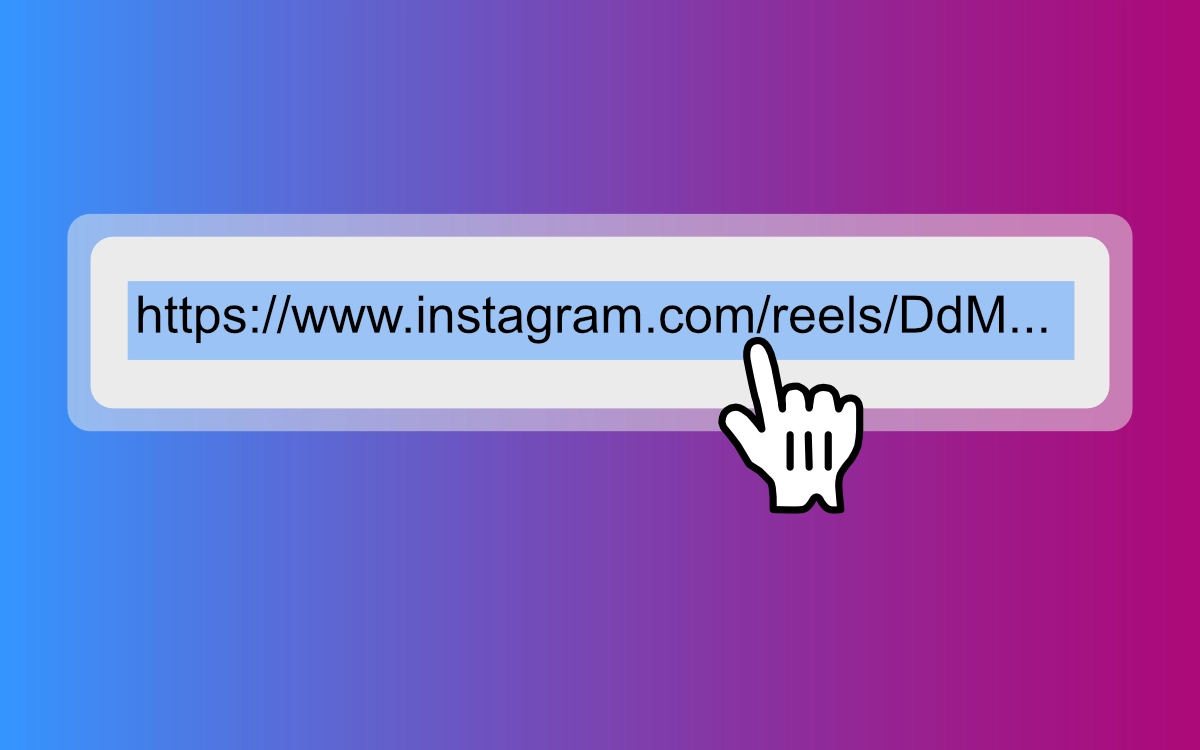
Once installed on Android, the downloader shows up in the share menu of other apps, Instagram included. Open a reel, tap the share arrow, and below Instagram's own options your phone lists the apps that can receive a link. Pick this one and it opens with the reel already loading, so the copy and paste step disappears completely.
Installing it on an iPhone
Open the home page in Safari, tap the Share button at the bottom of the screen, scroll down and choose Add to Home Screen. The icon then sits on your home screen and opens the downloader in a full screen window of its own, which is quicker than finding a bookmark.
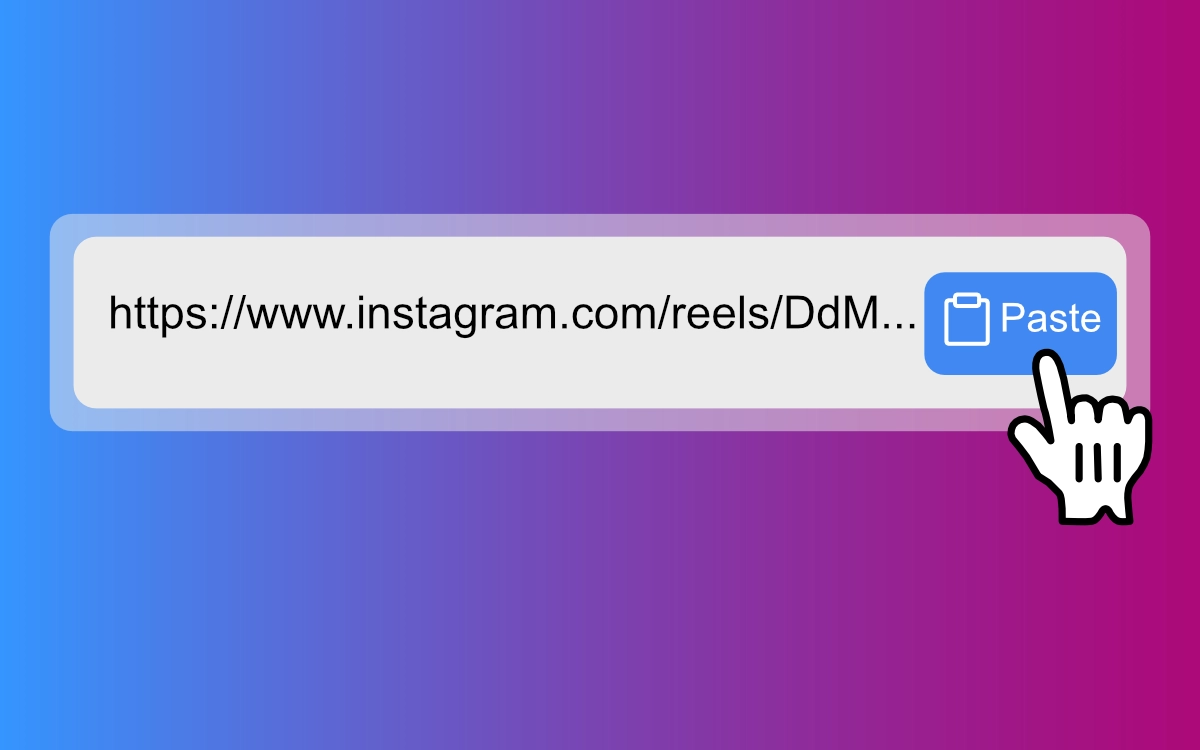
There is one honest limit. iOS does not let an installed web app appear in the share menu, so on an iPhone you still copy the link in Instagram and paste it in. The Paste button inside the box does that in a single tap, and saving the file afterwards works exactly as it does in Safari.
On a computer
Chrome and Edge on Windows, macOS, Linux and ChromeOS can install the site as well. Look for the small install icon at the right end of the address bar, or find Install in the browser menu. The downloader then opens in its own window from the Start menu, the Dock or the app launcher, and files still land in your usual Downloads folder.
Why not an APK or a store app
An APK from a download site asks you to switch off one of the protections Android gives you, then asks for access to your storage, and sometimes much more than that. Store apps in this category tend to come with sign ups, watermarks and weekly subscriptions. The installed web page needs no permissions at all, because the browser does the saving.
- No account and no login, on any device.
- Nothing to update, since the icon always loads the live site.
- No access to your photos, contacts or other apps, because none is ever requested.
What the app can and cannot save
The installed app is the same tool as the web page, so it saves the same things: public reels, feed videos, single photos and every slide of a carousel. Stories, highlights, private accounts and profile pictures are not supported, because all of them sit behind a login and this tool never signs in to Instagram.
As with anything you save, the reel still belongs to whoever made it. Keep it for yourself, and if it goes anywhere else, credit the creator and link back to the original post.
Prefer to skip the install? The box at the top of this page works right now, or start from the Instagram reels downloader.